In articy:draft, you can design complex flows to create branching dialogues, menu systems, AI behavior, and more. These flows consist of nodes, connections, and scripts, enabling you to craft dynamic, interactive systems. Once you've created these flows, you can traverse them inside Unreal Engine using the UArticyFlowPlayer component.
Basic Introduction to Flow Traversal
Before diving into how the UArticyFlowPlayer works, let’s clarify some key terms:
- Nodes: Building blocks of flows in articy:draft, such as UArticyFlowFragment, UArticyDialogueFragment, UArticyHub, etc.
- Pins: Points of connection on flow nodes. UArticyInputPins are on the left side of the node, and UArticyOutputPins are on the right.
- Connections: Links between nodes, created from an UArticyOutputPin to an UArticyInputPin.
- Scripts: Custom logic that runs at specific points during flow traversal. These scripts can manipulate traversal behavior and control conditions or instructions.
Flow traversal is the process of moving through nodes, following connections, and executing scripts. In Unreal, the UArticyFlowPlayer automates this process.
Setting up the ArticyFlowPlayer
- C++
You can attach the ArticyFlowPlayer component to an actor programmatically as follows:
UArticyFlowPlayer* FlowPlayer = NewObject<UArticyFlowPlayer>(this);FlowPlayer->RegisterComponent();Definition ArticyFlowPlayer.h:29 - Blueprint
1) Add an ArticyFlowPlayer component to an actor by selecting your actor and clicking Add Component in the Details panel. Search for ArticyFlowPlayer and add it to your actor.
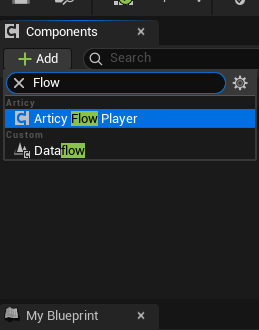 Add Articy Flow Player component
2) In the Details panel, you can set the properties for the ArticyFlowPlayer, such as the start node and the types of nodes it should pause on.
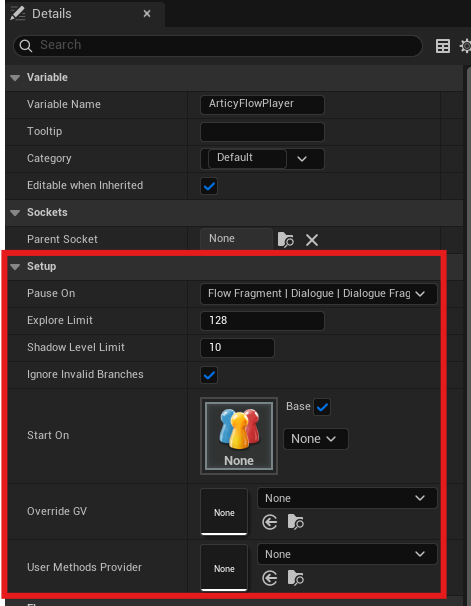 Setup flow player
Once attached, the ArticyFlowPlayer will traverse the flow based on the nodes, connections, and scripts defined in articy:draft.
Pausing at Specific Nodes
You may want the ArticyFlowPlayer to pause on specific node types, such as DialogueFragment, to handle events like dialogues. You can configure this by using the PauseOn property to specify the node types the player should pause on.
- C++
You can configure this in code by setting the PauseOn property:
FlowPlayer->SetPauseOn(EArticyPausableType::DialogueFragment);void SetPauseOn(EArticyPausableType Types)Definition ArticyFlowPlayer.cpp:436This tells the ArticyFlowPlayer to pause when it encounters DialogueFragment nodes during traversal.
- Blueprint
1) Select your actor with the ArticyFlowPlayer component.
2) In the Details panel, look for the PauseOn property and set the types of nodes to pause on, such as DialogueFragment, FlowFragment, etc.
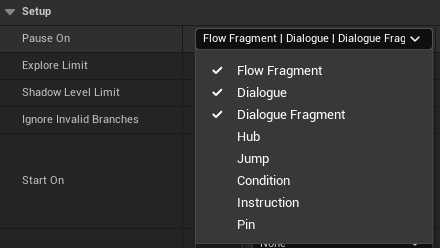 Pause on property
Handling Pauses with Delegates
The ArticyFlowPlayer uses delegates to notify you when it pauses at specific nodes or when new branches are available for traversal.
- C++
You can bind functions to the OnPlayerPaused and OnBranchesUpdated delegates as follows:
FlowPlayer->OnPlayerPaused.AddDynamic(this, &MyClass::HandleFlowPaused);FlowPlayer->OnBranchesUpdated.AddDynamic(this, &MyClass::HandleBranchesUpdated);FOnBranchesUpdated OnBranchesUpdatedDefinition ArticyFlowPlayer.h:169The HandleFlowPaused method will be called when the flow player pauses at a node:
void MyClass::HandleFlowPaused(TScriptInterface<IArticyFlowObject> PausedOn){if (PausedOn.GetObject()->IsA(UDialogueFragment::StaticClass())){UDialogueFragment* Dialogue = Cast<UDialogueFragment>(PausedOn.GetObject());if (Dialogue){// Display dialogue text in your UIUE_LOG(LogTemp, Warning, TEXT("Dialogue Text: %s"), *Dialogue->Text.ToString());}}} - Blueprint
- Open your actor's Event Graph.
- Right-click and search for OnPlayerPaused and OnBranchesUpdated. These events are automatically available from the ArticyFlowPlayer.
- Add logic to handle the pause event (e.g., updating UI with dialogue text) or the branches update event (e.g., showing choices to the player).
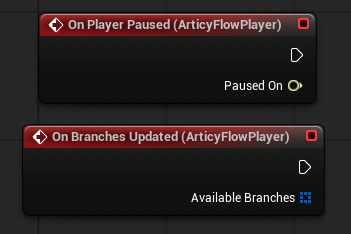 On Player Paused and On Branches Updated events
Handling Branches
When the flow player pauses, it gathers all the possible branches (i.e., paths) from the current node. You can handle these branches to display options to the player or make decisions in your game.
- C++
void MyClass::HandleBranchesUpdated(const TArray<FArticyBranch>& Branches){{if (Branch.bIsValid){TScriptInterface<IArticyFlowObject> Target = Branch.GetTarget();if (Target){UE_LOG(LogTemp, Warning, TEXT("Branch Target: %s"), *Target->GetDisplayName().ToString());}}}}Definition ArticyBranch.h:16
- Blueprint
1) In the Event Graph, use the OnBranchesUpdated event. 2) Add logic to handle branches, such as showing dialogue options or making gameplay choices.
 On Branches Updated
Once you have the branches, you can continue the flow traversal using the selected branch:
- C++
FlowPlayer->PlayBranch(Branches[SelectedBranchIndex]);void PlayBranch(const FArticyBranch &Branch)Definition ArticyFlowPlayer.cpp:636
- Blueprint
- Use the PlayBranch function to pass the selected branch and resume the flow.
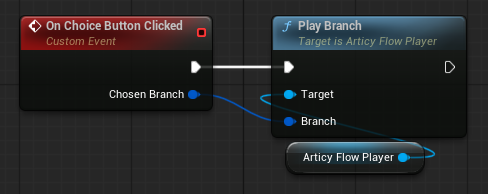 Play Branch, e.g. upon a button click
Playing the Flow
After the flow player pauses, it waits for you to call the Play method to continue traversal. You can call Play with the index of the selected branch.
- C++
FlowPlayer->Play(SelectedBranchIndex);
- Blueprint
- Use the Play function and pass the index of the selected branch to continue the flow.
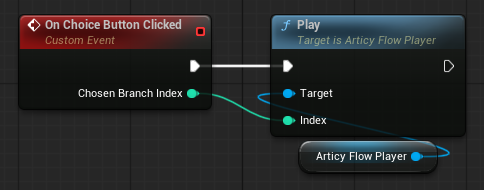 The Play node
FlowPlayer and Scripting
The ArticyFlowPlayer automatically evaluates scripts attached to nodes or pins during traversal. These scripts can modify global variables, call functions, or evaluate conditions. You don’t need to manually execute scripts — the flow player handles this, but you can access global variables and methods if needed.
- C++
UArticyGlobalVariables* GlobalVars = FlowPlayer->GetGVs();if (GlobalVars){}Definition ArticyGlobalVariables.h:479void SetBoolVariable(FArticyGvName GvName, const bool Value)Definition ArticyGlobalVariables.cpp:410
- Blueprint
- Click the Global Variables Debugger icon in the toolbar of your main Unreal Engine window to view or modify global variables.
- Note
- You need to be in Play In Editor mode in order to use the debugger!
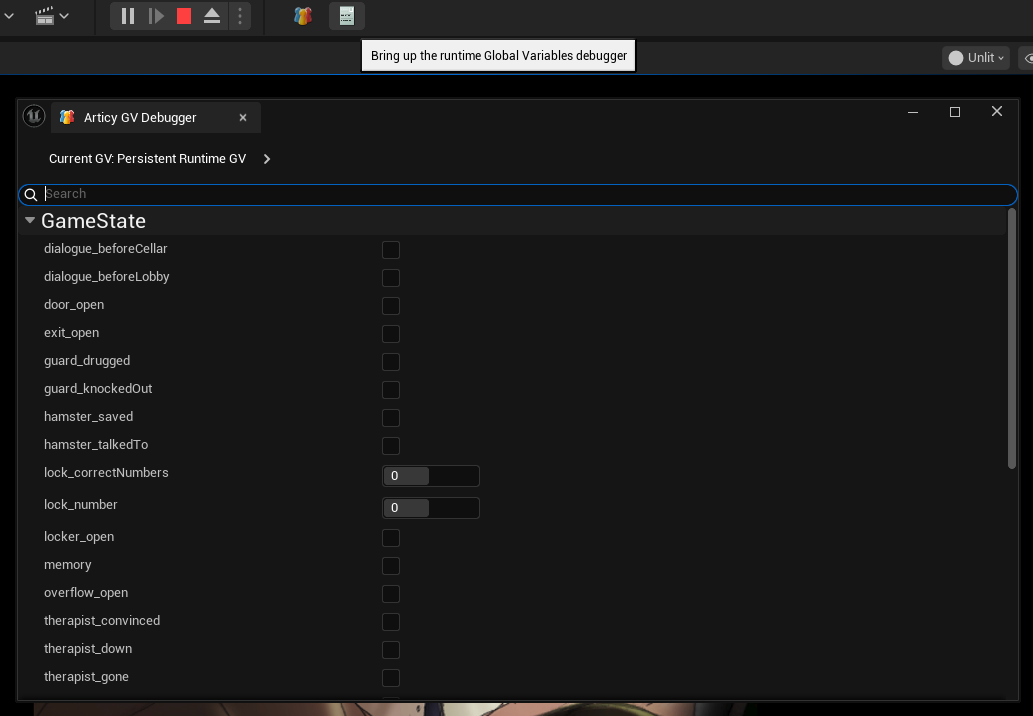 Global Variables Debugger
The ArticyFlowPlayer in Unreal Engine makes it easy to traverse and interact with flows from articy:draft. By pausing at key nodes and using delegates in C++ or events in Blueprints, you can control how your game handles dialogues, choices, and other flow-based interactions. With built-in support for scripting and global variables, the ArticyFlowPlayer simplifies managing complex branching flows and dynamic game narratives.