In Unreal, as in Unity, the data imported from articy:draft is generally treated as a single instance. This means that any modifications made to an object are persistent across all references to that object. However, in some situations, you may want to create independent copies of an object so that changes do not affect the original. This process is known as cloning, and it allows for multiple instances of an object to be handled separately.
In Unreal, cloning is handled similarly to Unity, with instance IDs used to differentiate between the original object and its clones. Below, we’ll explore how to clone objects in Unreal using both C++ and Blueprints.
Basic Cloning
- C++
To clone an object, you can use the UArticyDatabase::CloneFrom method. This method creates a copy of an object with a unique instance ID, allowing you to modify the cloned object independently.
Example: Cloning a character object
// Clone the object with instance ID 1UManiacManfredCharacter* ClonedManfred = UArticyDatabase::Get(WorldContext)->CloneFrom<UManiacManfredCharacter>("Chr_Manfred", 1);// Modify the cloned objectClonedManfred->DisplayName = FText::FromString("Cloned Manfred");// Retrieve the clone using its instance IDUManiacManfredCharacter* RetrievedClone = UArticyDatabase::Get(WorldContext)->GetObjectByName<UManiacManfredCharacter>("Chr_Manfred", 1);UE_LOG(LogTemp, Warning, TEXT("Cloned Manfred's Display Name: %s"), *RetrievedClone->DisplayName.ToString());// Retrieve the original (base) object without an instance IDUManiacManfredCharacter* BaseManfred = UArticyDatabase::Get(WorldContext)->GetObjectByName<UManiacManfredCharacter>("Chr_Manfred");UE_LOG(LogTemp, Warning, TEXT("Base Manfred's Display Name: %s"), *BaseManfred->DisplayName.ToString());static UArticyDatabase * Get(const UObject *WorldContext)Definition ArticyDatabase.cpp:217UArticyObject * CloneFrom(FArticyId Id, int32 NewCloneId=-1, TSubclassOf< class UArticyObject > CastTo=NULL)Definition ArticyDatabase.cpp:786UArticyObject * GetObjectByName(FName TechnicalName, int32 CloneId=0, TSubclassOf< class UArticyObject > CastTo=NULL) constDefinition ArticyDatabase.cpp:701In this example:
- CloneFrom is used to create a clone of "Chr_Manfred" with instance ID 1.
- The cloned object is then modified independently.
- GetObjectByName can retrieve either the cloned object by providing its instance ID, or the base object by omitting the instance ID.
- Blueprint
Cloning objects in Blueprint follows the same principles as C++, but the process is visually represented in the Blueprint Editor.
- Clone an Object: Use the Clone From node to clone an object and specify the instance ID for the clone.
- Modify the Clone: Once the object is cloned, you can modify its properties just like any other object.
- Retrieve the Clone: Use the Get Object node to retrieve the cloned object by specifying the instance ID.
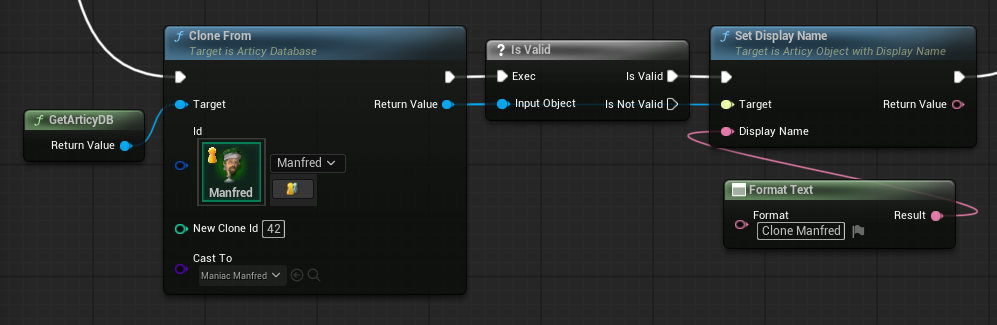 Clone From and Set Display Name on the clone
Here’s how it works in Blueprint:
- Add the Clone From node to clone an object, providing the technical name and instance ID.
- Use the Set Property nodes to modify the clone's properties.
- Use the Get Object node to retrieve the base object or clone based on the instance ID.
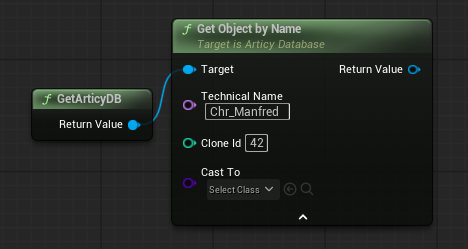 Get Clone using Get Object by Name
Cloning with ArticyRef in Unreal
The FArticyRef type in Unreal also supports cloning. When dealing with references, you can configure how the reference should behave when cloning objects.
- Cloning via ArticyRef: When setting up a reference using an ArticyRef property in a Blueprint or C++, you can specify whether to clone the referenced object or simply reference the base object.
- Instance ID in ArticyRef: For clones, you can specify an instance ID directly in the ArticyRef, which will be used to manage and retrieve the correct instance of the cloned object.
In Blueprint, the ArticyRef field will automatically provide options for configuring whether to reference the base object or a cloned instance, making it easy to manage cloned references.
Cloning in Unreal Engine with articy:draft data offers flexibility for managing multiple instances of objects, allowing you to modify clones without affecting the base object. Whether you are working in C++ or Blueprint, the process is straightforward, and the ArticyDatabase provides all the necessary tools to clone, retrieve, and manage object instances efficiently.