When you export your data from articy:draft X into your Unreal project, the ArticyXImporter plugin populates a database with your data. This section will cover how to access and interact with that data in Unreal Engine using both C++ and Blueprint.
Simple Object Access
The most basic way to access an Articy object is by querying it directly from the ArticyDatabase using its Id or Technical Name.
- C++
Example: Retrieving an object by its technical name:
static UArticyDatabase * Get(const UObject *WorldContext)Definition ArticyDatabase.cpp:217UArticyObject * GetObjectByName(FName TechnicalName, int32 CloneId=0, TSubclassOf< class UArticyObject > CastTo=NULL) constDefinition ArticyDatabase.cpp:701Definition ArticyObject.h:19The GetObjectByName method returns a UArticyObject, which is the base class for all Articy objects. You can cast this object to a more specific type to access its properties.
Example: Retrieving an object and casting it to its proper type:
UManiacManfredCharacter* Manfred = UArticyDatabase::Get(WorldContext)->GetObjectByName<UManiacManfredCharacter>("Chr_Manfred");In this case, the object is automatically cast to UManiacManfredCharacter, giving you access to all properties and methods specific to that class.
UE_LOG(LogTemp, Warning, TEXT("Manfred's Display Name: %s"), *Manfred->GetDisplayName().ToString());Manfred->DisplayName = FText::FromString("Advanced Manfred 2.0"); - Blueprint
1) Retrieve the Articy object:
- In the Blueprint Editor, you can use the node Get Object By Name on the ArticyDatabase type to retrieve an object by its technical name. Use Cast To to convert it to the appropriate type (e.g., ManiacManfredCharacter).
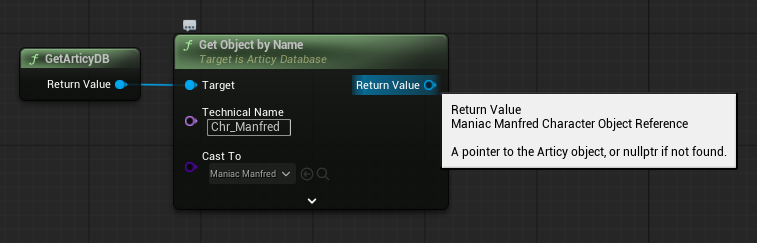 Get Object By Name
2) Modify or access properties:
- Once cast, you can access or modify the object’s properties. For example, use Set Display Name to modify the display name or Get Display Name to retrieve it.
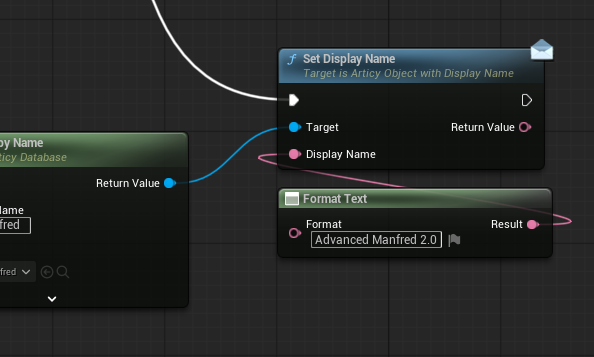 Set Display Name
Accessing by Object ID
Each Articy object has a unique ArticyId, which can be used to retrieve it directly. You can access objects by their ID in either hexadecimal or decimal formats.
- C++
Example: Retrieving an object by its ID:
UArticyObject* ManfredById = UArticyDatabase::Get(WorldContext)->GetObject(FArticyId(0x1000001000010C6));UArticyObject * GetObject(FArticyId Id, int32 CloneId=0, TSubclassOf< class UArticyObject > CastTo=NULL) constDefinition ArticyDatabase.cpp:665Definition ArticyBaseTypes.h:18You can also retrieve objects using their decimal equivalent:
- Blueprint
1) Retrieve the Articy object by ID:
- In the Blueprint Editor, use the node Get Object and pass in the ArticyId to retrieve the object.
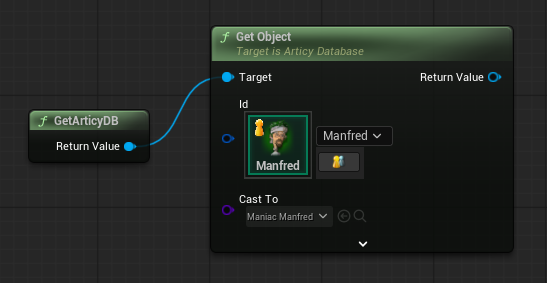 Get Object By Id
Retrieving Multiple Objects
It is possible to assign the same Technical Name to multiple objects, although it is not recommended. If you have multiple objects with the same name, you can retrieve them all at once.
- C++
Example: Retrieving multiple objects with the same technical name:
TArray< T * > GetObjects(FName TechnicalName, int32 CloneId=0) constDefinition ArticyDatabase.h:541While assigning the same technical name to multiple objects can lead to errors, it's better to group objects by their type and query them accordingly.
- Blueprint
1) Retrieve multiple objects:
- Use the Get Objects node in the Blueprint Editor to retrieve all objects with the same technical name.
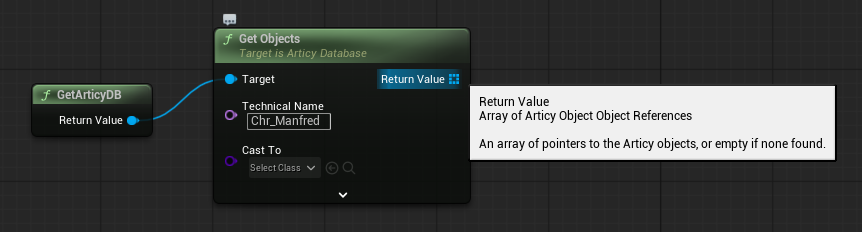 Get Objects By Name
Advanced Object Access
For more advanced handling, you can retrieve all objects of a specific type using the GetObjectsOfClass method.
- C++
Example: Retrieving all objects of a specific type:
TArray<UItem*> AllItems = UArticyDatabase::Get(WorldContext)->GetObjectsOfClass<UItem>();TArray< T * > GetObjectsOfClass(int32 CloneId=0) constDefinition ArticyDatabase.h:552Once you have all the objects, you can apply further filtering conditions, such as finding specific objects based on their properties.
TArray<UItem*> ExpensiveItems = AllItems.FilterByPredicate([](const UItem* Item){return Item->Item.GoldCost > 100;}); - Blueprint
1) Retrieve objects by type:
- Use the Get Objects Of Class node to retrieve all objects of a specific type in Blueprint.
2) Filtering objects:
- You can filter the results by using For Each Loop nodes to iterate through the array and check for specific conditions.
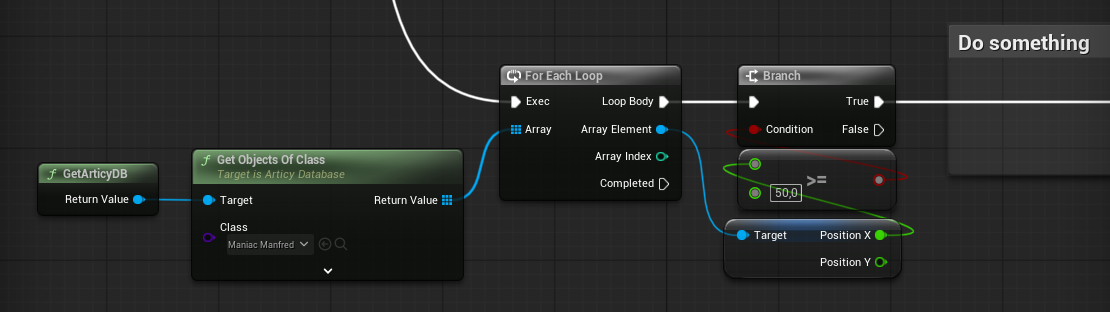 Advanced access
Whether using C++ or Blueprint, ArticyXImporter provides flexible ways to access Articy objects in Unreal. You can query objects by Technical Name, ArticyId, or Type and modify their properties directly in Unreal Engine.
For more advanced techniques and best practices, explore the [Object Handling with ArticyRef](Object-Handling-with-ArticyRef) section.